- Home
- Budget Tracker
- Guide
Budget Tracker guide
This is the guide that comes with the kit, in full. It shows how to set up a personal budget dashboard in your own AI app and what you can ask it every day.
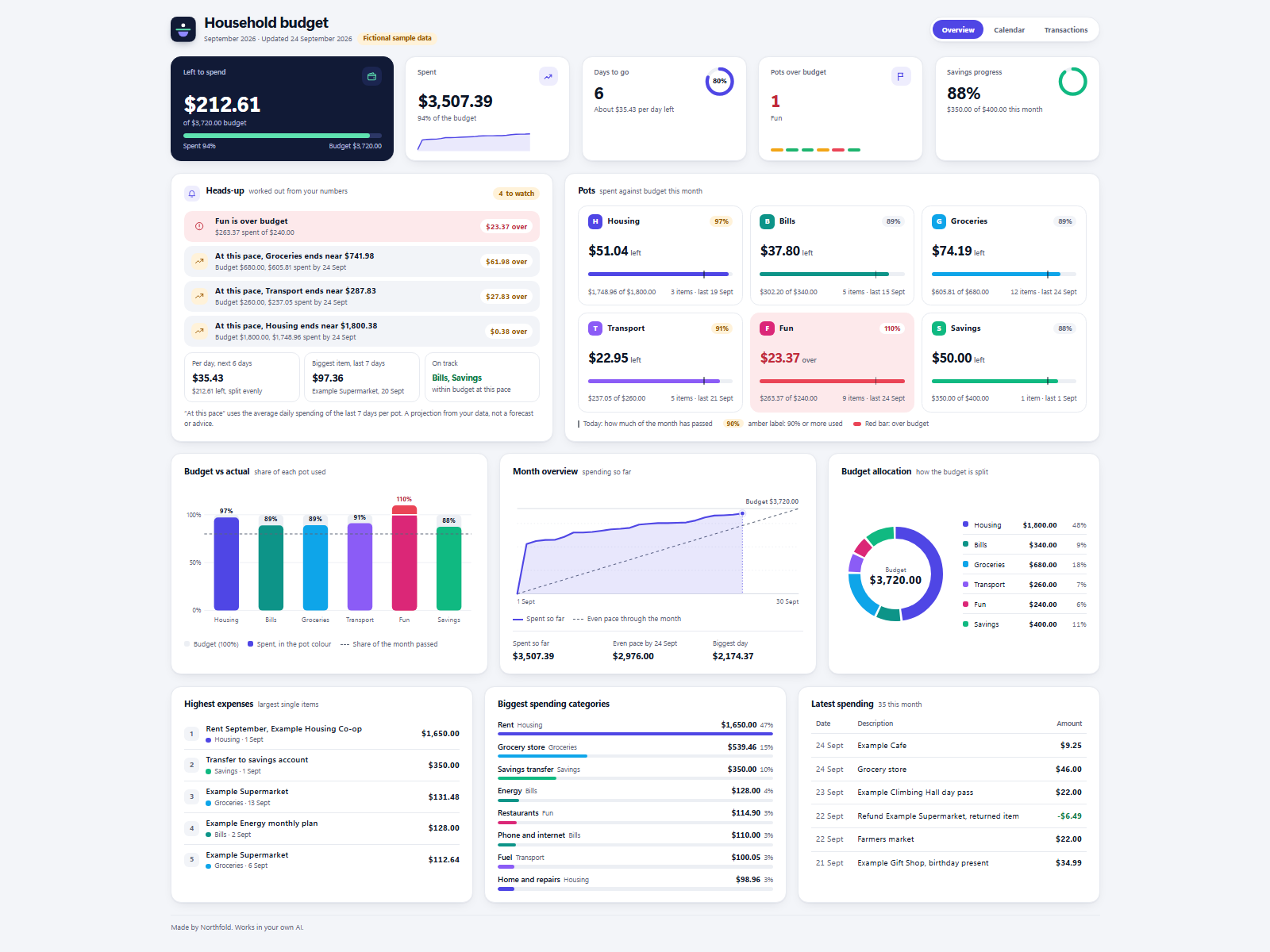
A monthly household budget that lives in a folder on your computer. You tell Claude what you spent, or drop a bank export file in a folder, and Claude keeps the numbers and the dashboard up to date.
On your phone or in a chat app
Start a new chat in your AI app (ChatGPT, Gemini, Grok or Claude), attach the kit zip and press send. Your AI asks the setup questions and gives you your dashboard as a web page to open in your browser. Type save when you are done and keep the save file: next time, start a new chat, attach the zip and that file. Everything below about folders and files is for the Claude desktop app on a computer.
Setup (once)
- Unpack the zip into a folder of your choice, for example
My budget. - Open the Claude desktop app (Code tab or Cowork) and choose that folder as the working folder.
- Type:
Read Ownkit/START.md and follow it. - Answer four short questions: currency, your pots and their monthly amounts, the day your month starts, and whether you want to see sample data first.
Every day
Talk to Claude in plain language. For example:
- "Just spent $46 at the grocery store."
- "Paid $12 for parking yesterday."
- "Got $6.49 back from the grocery store." (a refund lowers what that pot has spent)
- "That last one was transport, not fun."
- "How much is left for groceries?"
- "Set fun to $220 from next month."
- "Add a pot for the dog, $60 a month."
Open dashboard.html (double-click) to see your budget. Refresh the page after Claude makes a change.
Bank export files
- In your own online banking, export your transactions as a CSV file. How to do that depends on your bank.
- Drop the file into the
inboxfolder. - Say: "Process my inbox."
The first time, Claude shows you the columns and asks which ones hold the date, the description and the amount, and how your bank writes amounts. It saves that layout and reuses it next time. Claude proposes a pot for each payment and asks before it remembers a new rule (for example "Example Supermarket goes to Groceries"). Money coming in, such as salary, is skipped: this budget tracks spending. Imported files move to inbox/processed; nothing is deleted.
Claude never needs your bank login, and the file never leaves your folder.
The dashboard
- Left to spend, Spent, Days to go, Pots over budget at the top.
- Pots: each pot as spent against budget, with what is left or how much it is over.
- Month overview: your spending so far as a line, next to a dashed line for spending the budget evenly through the month. "Even pace by 24 Sept" in a 30-day month means 24/30 of the total budget: the share of the month that has passed, including that day.
- Biggest spending categories: where most of the money went this month.
- Latest spending and a full Transactions tab, filterable by pot.
- History: every month you have tracked. Pick an earlier month at the top right.
All totals are calculated by the page itself from the data inside it.
A new month
Say "Start the new month." Claude shows a short summary of the month you close, asks whether to keep your pot amounts, and starts the new month. Old months stay in the history. Leftover money does not carry over unless you ask for it.
Sample data
If you chose to see the sample, the dashboard shows a fictional month (September 2026) marked "Sample data". To try a bank import, copy Ownkit/Sample data/sample-bank-export.csv into inbox and say "Process my inbox". Say "Clear the sample data" to go back to your own pots.
Settings you can change by asking
- Currency: "Use GBP."
- Number and date style: "Show amounts in US style." (Claude sets the locale, for example
en-US) - Title: "Call the dashboard Our budget."
- Month start day: "My month starts on the 25th from now on."
What Claude will not do
Ask for passwords or bank logins, connect to your bank, pay or transfer anything, give financial advice, or delete your files.