- Home
- Workout Tracker
- Guide
Workout Tracker guide
This is the guide that comes with the kit, in full. It shows how to set up a workout log in your own AI app and what you can ask it every day.
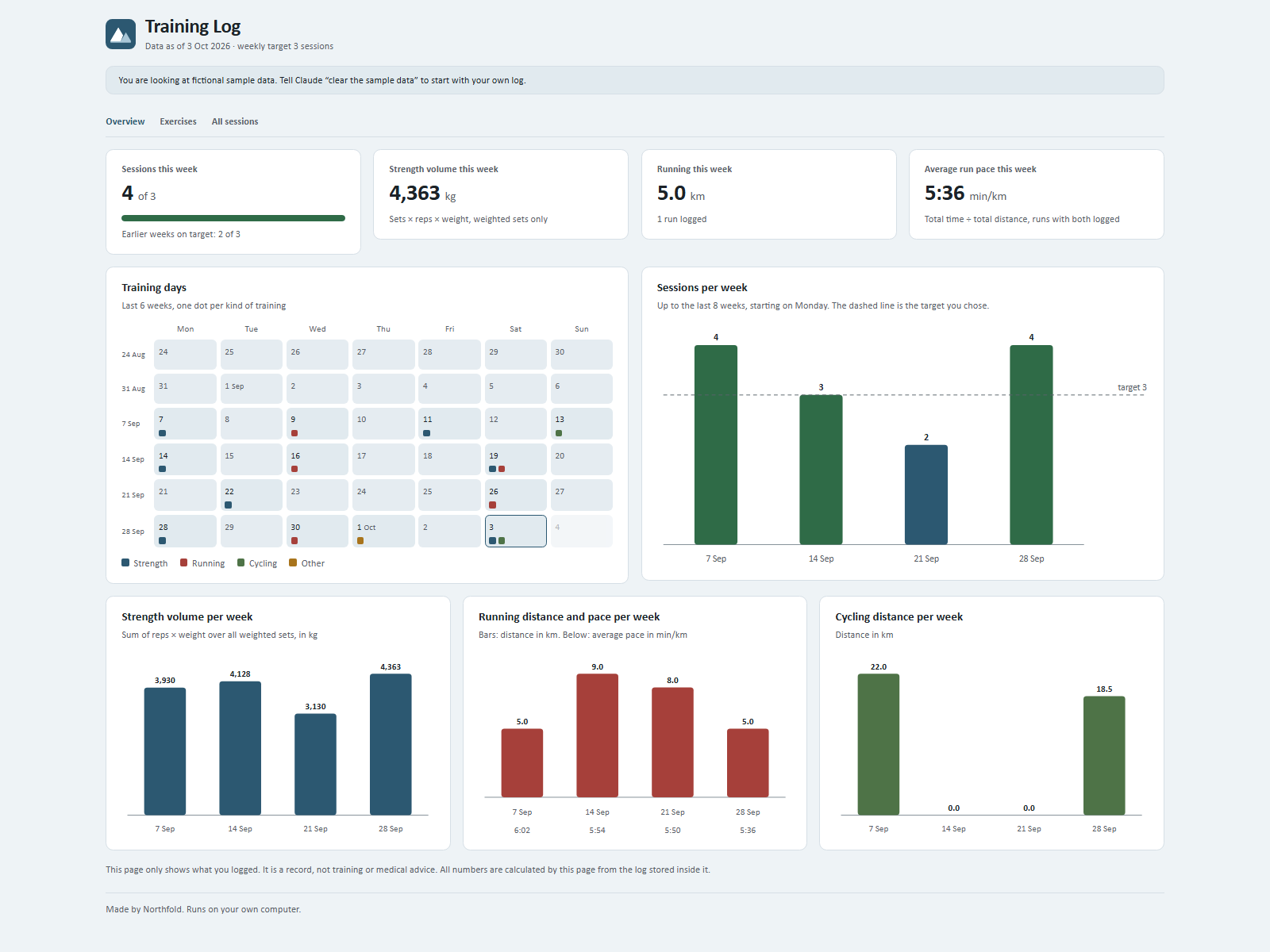
A training log you talk to. You tell your AI (ChatGPT, Gemini, Grok or Claude) what you did, it writes it down, and your dashboard shows your week, your training days, your best sets and your running per week.
Getting started on your phone (or in any chat app)
- Start a new chat in your AI app (ChatGPT, Gemini, Grok or Claude) and attach the kit zip.
- Type:
Read Ownkit/START.md and follow it. - Answer four short questions: which kinds of training you do, kg or lb, km or mi, and how many sessions per week you want to aim for.
- You get your dashboard as a web page,
Workout Tracker.html. Open it from your Downloads or Files app; it opens in your browser. In the browser's share menu you can choose Add to Home Screen. - Type
savewhen you are done and keep the save file. Next time, start a new chat, attach the zip and that save file, and type the same line.
You can look at four weeks of fictional sample data first; say "clear the sample data" to start for real.
Getting started on a computer with a folder (Claude desktop app)
- Unpack the zip into a folder, for example
Training. - Open the Claude desktop app, choose that folder in the Code tab and type:
Read Ownkit/START.md and follow it. - Answer the same four questions. Claude then creates
dashboard.html,data/workouts.json,CLAUDE.mdand two skills in your folder.
Every day
Just say what you did:
- "Squats 3x5 at 80 kg, then a 5 km run in 28 minutes."
- "Bench press 5, 5, 4 at 60 kg."
- "Pull-ups 3x8, no weight."
- "Cycled 25 km yesterday, took about an hour."
- "45 minutes of yoga."
Ask about your log:
- "How did this week go?"
- "What is my best deadlift?"
- "How far did I run in September, and at what pace?"
Fix mistakes: "That run was 6 km, not 5." or "Delete Tuesday's session." (It asks before removing anything.)
The dashboard
On your phone: open Workout Tracker.html; ask "show my dashboard" for a fresh copy after logging. In a folder: double-click dashboard.html and refresh the page after logging. Either way it opens in your browser, works offline and makes no internet connections.
- Overview: sessions this week against your target, strength volume, running distance and average pace this week, a calendar of the last six weeks, and charts per week.
- Exercises: per exercise your best set, how many sessions, a small line of your top weight per session and the history of every set.
- All sessions: everything you logged, newest first.
How the numbers are worked out:
- Weeks run Monday to Sunday.
- Strength volume = reps x weight, added up over all sets with a weight. Bodyweight sets are not counted in volume.
- Best set = the heaviest weight; with equal weight, the most reps. Exercises without weight show the most reps in one set.
- Pace = total time divided by total distance, over runs where you gave both, shown as minutes:seconds per km or mile.
- If you leave out a time or distance, it stays unknown. Your AI never fills it in for you.
Good to know
- It is a log, not a coach or a medical tool. It does not give training plans or health advice. If you mention pain or an injury, your AI will suggest asking a doctor or physiotherapist.
- In a chat app your log lives in your save file: keep it, and attach it next time. In a folder,
data/workouts.jsonis the log and the dashboard holds a copy of it. - What you type goes through the AI app you use, under its own terms. Do not share your dashboard link if you want to keep your training private.
- Change your settings any time: "Change my weekly target to 4" or "Switch to pounds" (it converts your log; in a folder it makes a backup first).
- If a setup step was interrupted, type "continue".