How to use a kit on your phone, in the AI app you already use
Works with your AI, like ChatGPT, Gemini, Grok or Claude. Also on your phone, also on a free plan. After you get the kit, tap Open in your AI app, pick your app and press send.
Before you start
- An AI app you already use: ChatGPT, Gemini, Grok or Claude, on your phone or computer. A free plan works.
- An Ownkit account. It is free, and you need it to download any kit, including the free one.
Get the kit
Sign in on Ownkit, open the kit page and tap the button next to the price. A kit is one zip file. Paid kits are a one-time payment. Every kit you get is saved in your account, so you can get it again later.
Open it in your AI app
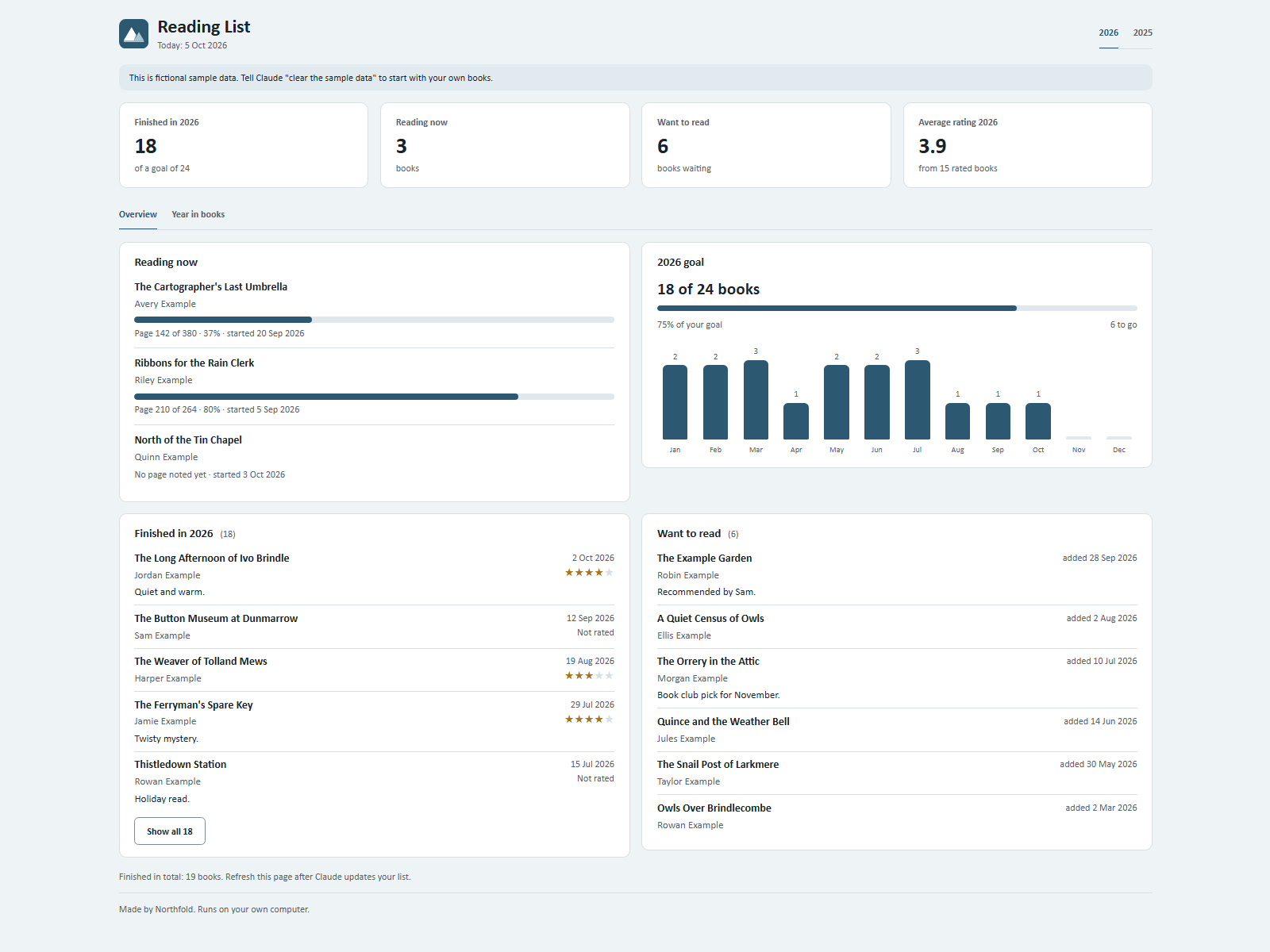
After you get the kit, tap Open in your AI app, pick ChatGPT, Claude, Gemini or Grok and press send. It starts building automatically: your AI asks a few short questions, then builds your dashboard. After that you just tell it what happened, in plain language, in the same chat. For Reading List that is something like "I'm on page 120 now."
If it does not start
No share menu on your device? Download the zip, start a new chat in your AI app, attach the zip and press send. Nothing happens after you press send? Type this line and send it:
Read Ownkit/START.md and follow it.
Interrupted? Type continue.
Good to know
- Free plans have limits. Each app sets its own usage limits on its free plan. If you reach one during the setup, wait until the app lets you continue and type continue.
- Your data goes through the app you choose. What you type is handled by that AI app, under its own terms and your privacy settings there. Ownkit only delivers the zip and never sees what you put in your kit.
- Sharing depends on the app. Some apps let you share the dashboard. Check what your app offers.
- Home screen on an iPhone. Add to Home Screen works for a web page open in Safari: tap the share button, then Add to Home Screen. A dashboard you downloaded as a file and opened from the Files app often cannot be pinned that way.
On a computer
The same works on a computer. You can also open the unzipped kit folder in the Claude desktop app; that route has its own guide: how to install a kit in the Claude desktop app.
Start with the free kit
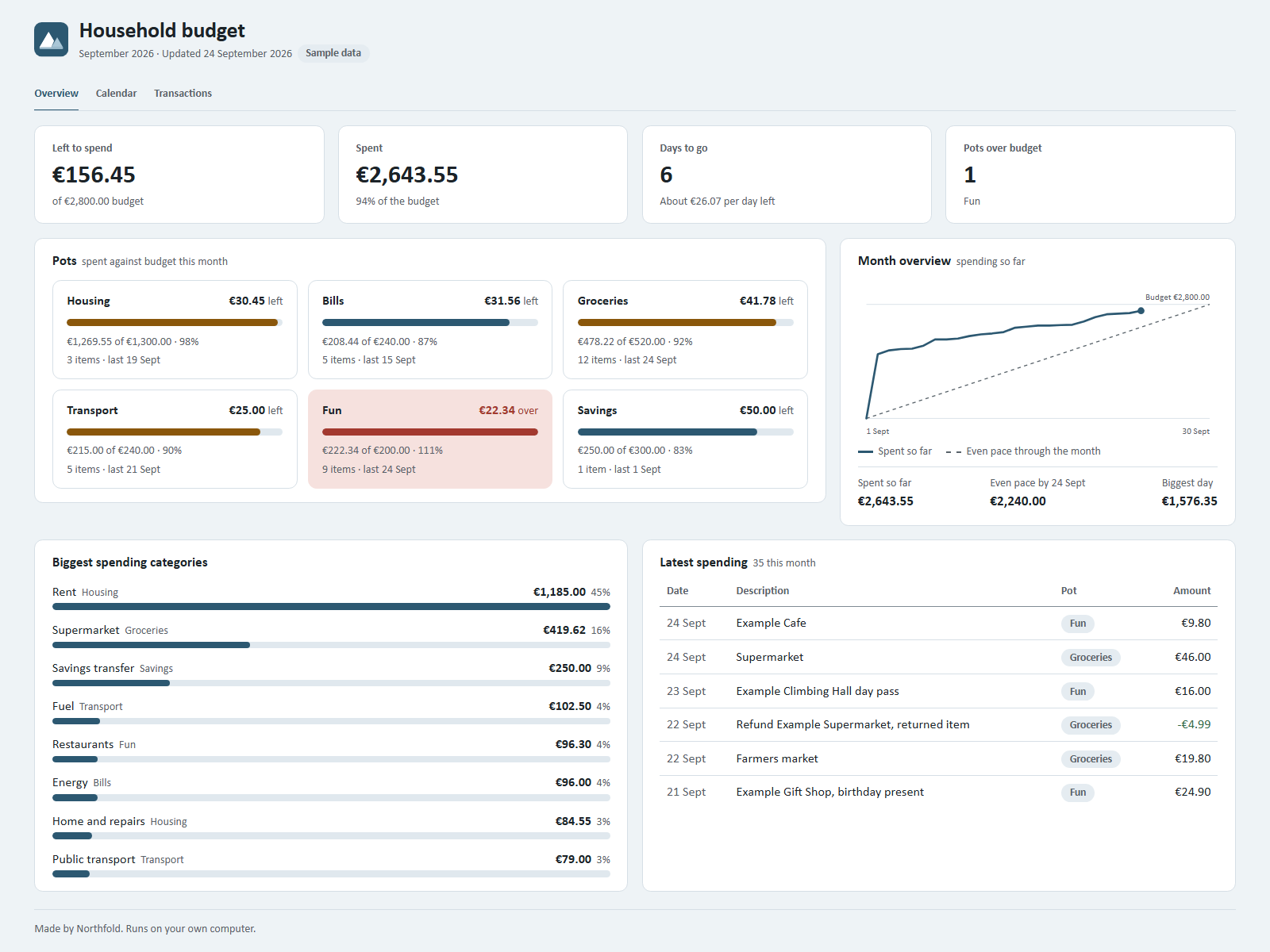
We tried this route with the free Reading List kit in the Grok app, on a phone, on a free account: it unpacked the kit and built the dashboard. Reading List is free with an Ownkit account, and every other kit starts the same way.
Sources
- Test by the Ownkit team on 14 October 2026: the free Reading List kit opened in the Grok app on a phone, on a free account.